Sometimes things don’t load quite right — images look outdated, pages don’t update, or something just feels off. More often than not, it’s a caching issue.
Your browser stores temporary files to help websites load faster, but occasionally that stored data needs to be cleared so you can see the most up-to-date version of a site.
Below, you’ll find simple step-by-step instructions for clearing your cache in Chrome, Safari, Edge, and Firefox.
Step 1
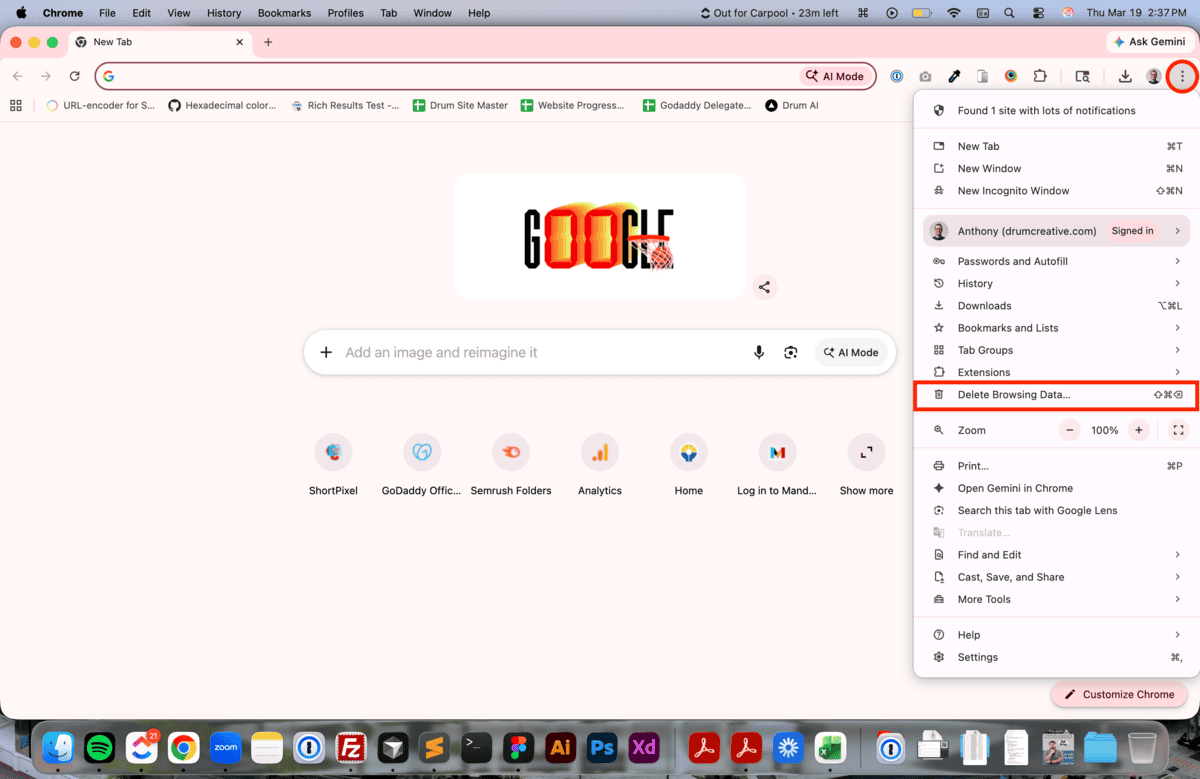
Open Chrome and click the three dots in the top-right corner. Then click “Delete Browsing Data.”
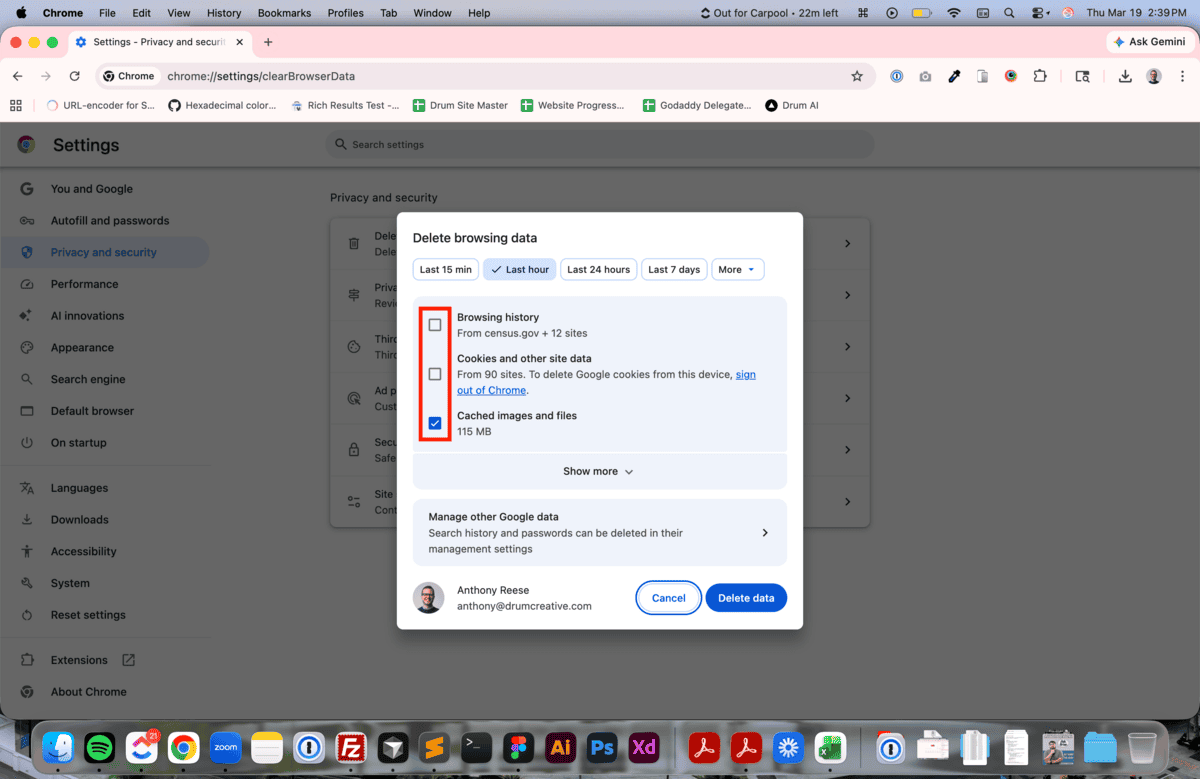
Ensure only the “Cached images and files” is checked. Deleting browsing history and cookies and other site data is unnecessary.
Note: Deleting cookies and other site data will sign you out of all accounts across all websites.
Step 3
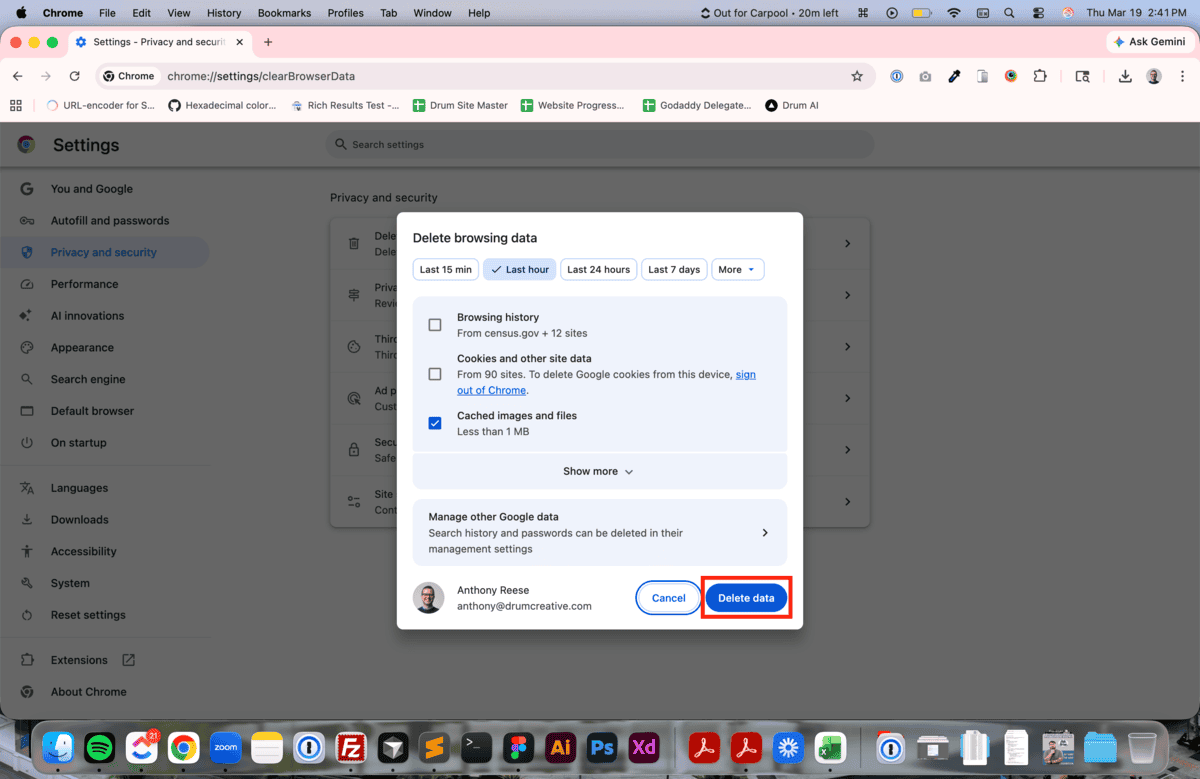
Click “Delete data.” That’s it!
Hint: If that doesn’t work, try adding a query parameter with a random strong of characters to your link (e.g. yoursite.com/?123), which will force your browser to load an uncached version of the page.
Step 1
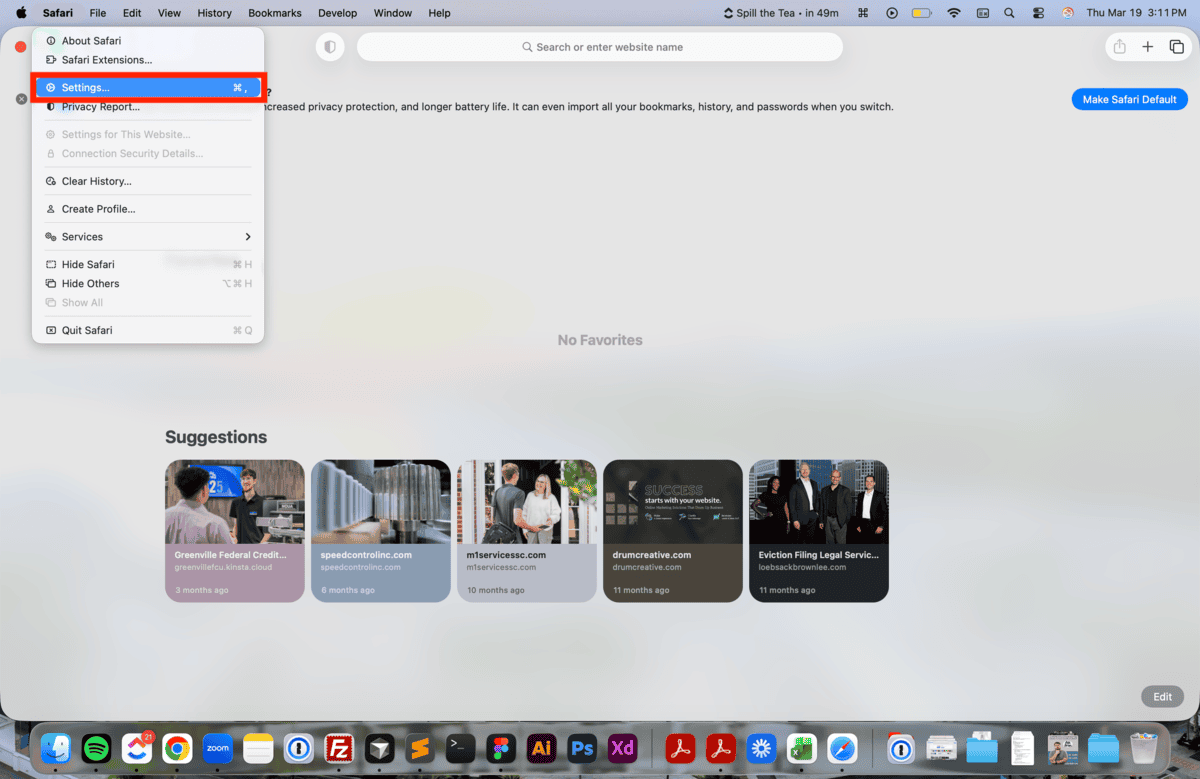
Open Safari, click “Safari” in the top menu, and click “Settings.”
Shortcut: Press Command + Comma (Mac)
Step 2
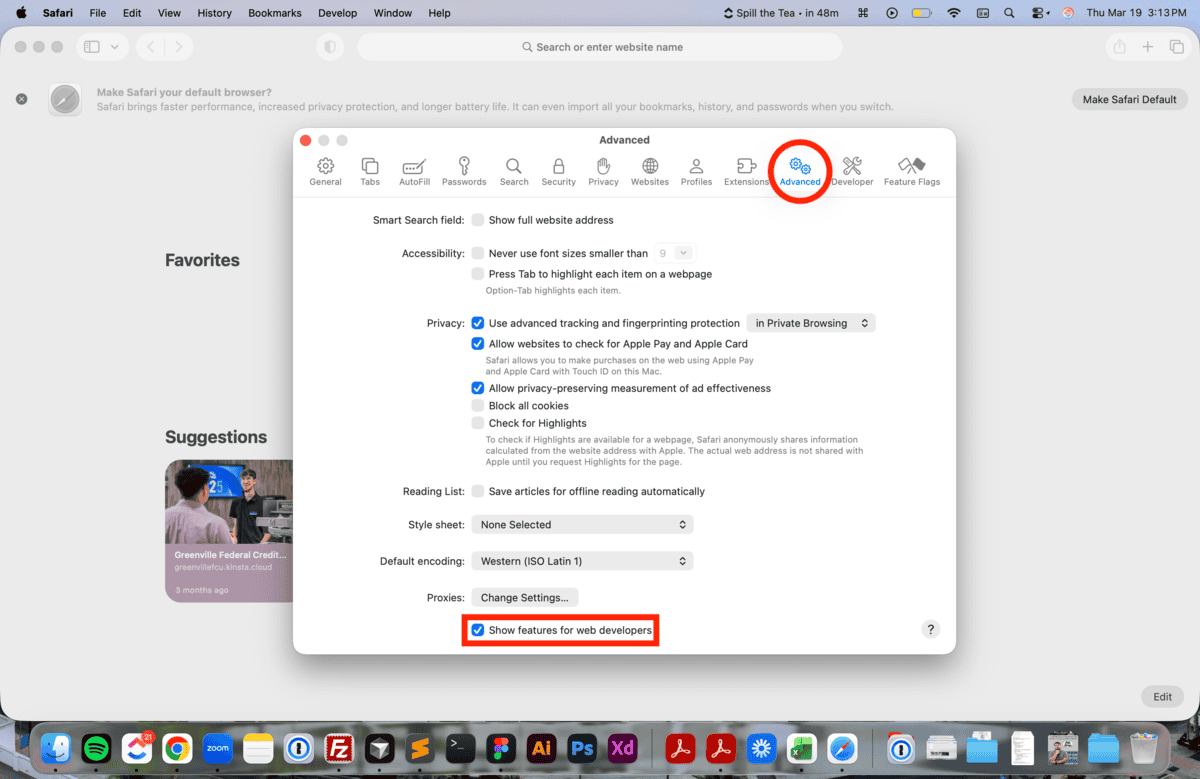
Go to the Advanced tab and select “Show features for web developers.” Then close the Settings window.
Step 3
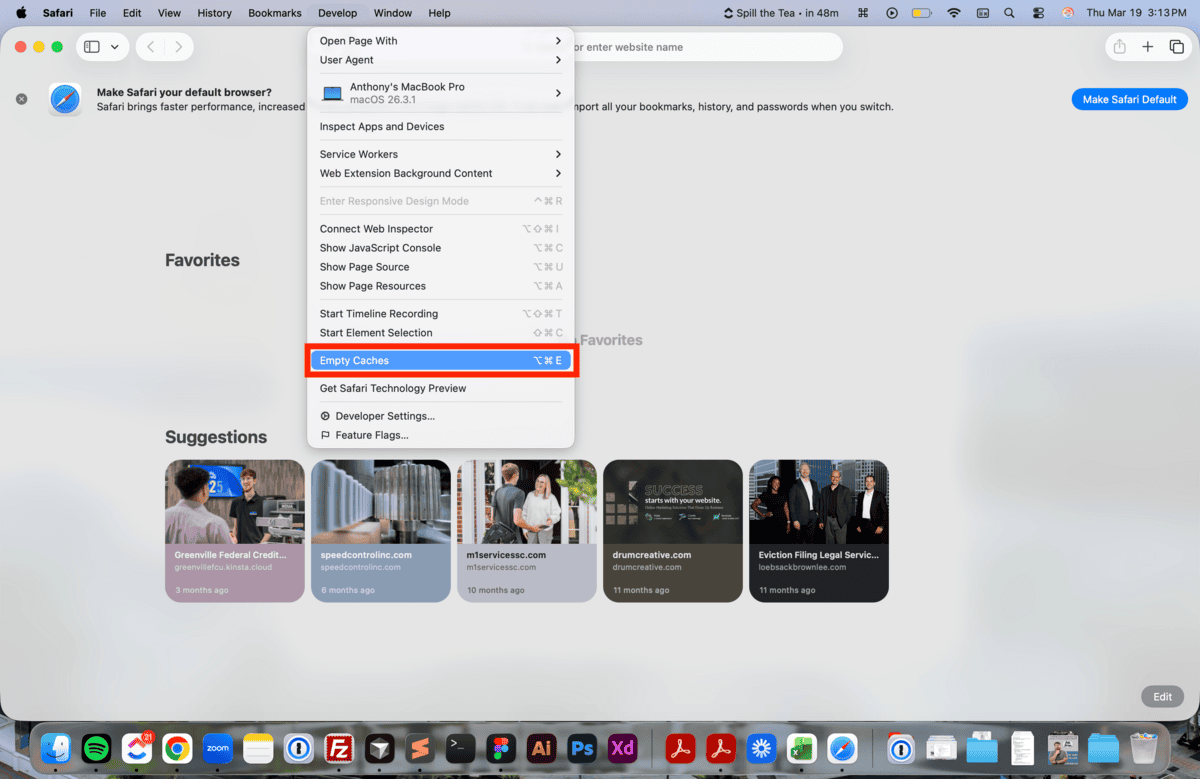
Click “Develop” in the top menu and then click “Empty Caches.” That’s it!
Hint: If that doesn’t work, try adding a query parameter with a random strong of characters to your link (e.g. yoursite.com/?123), which will force your browser to load an uncached version of the page.
Step 1
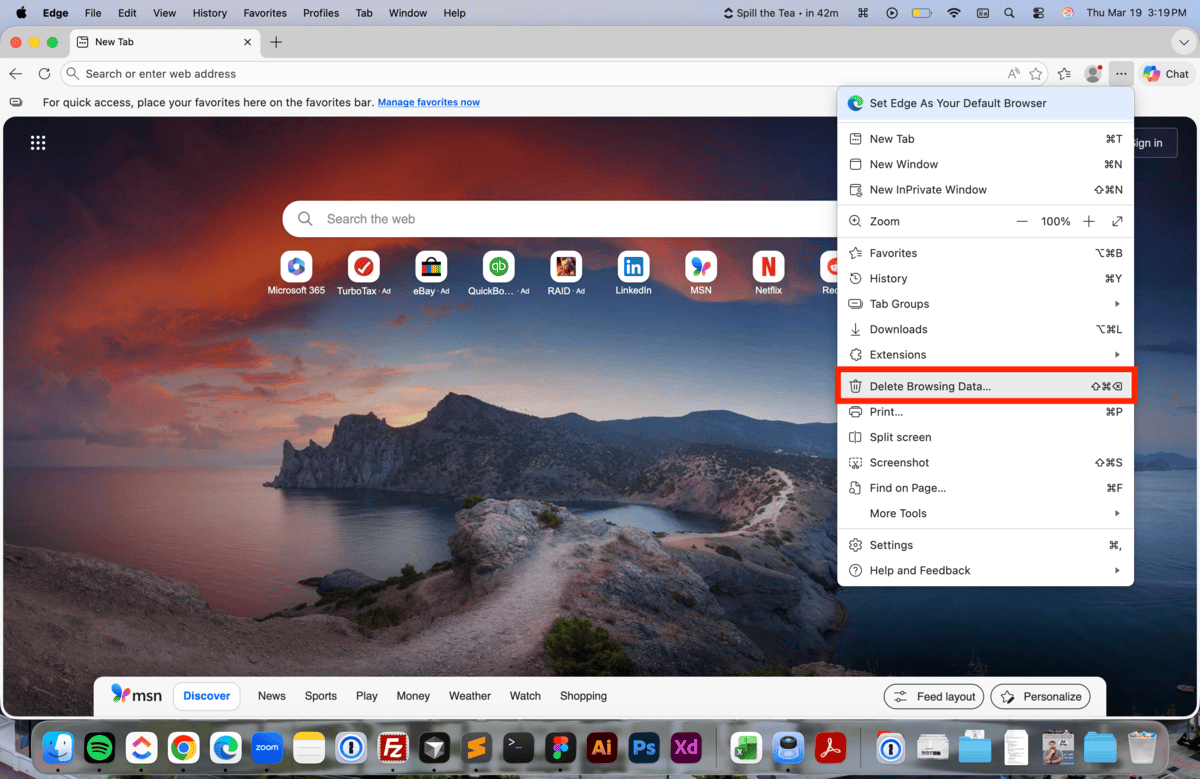
Open Edge, click the three dots in the top-right corner, and click “Delete Browsing Data.”
Step 2
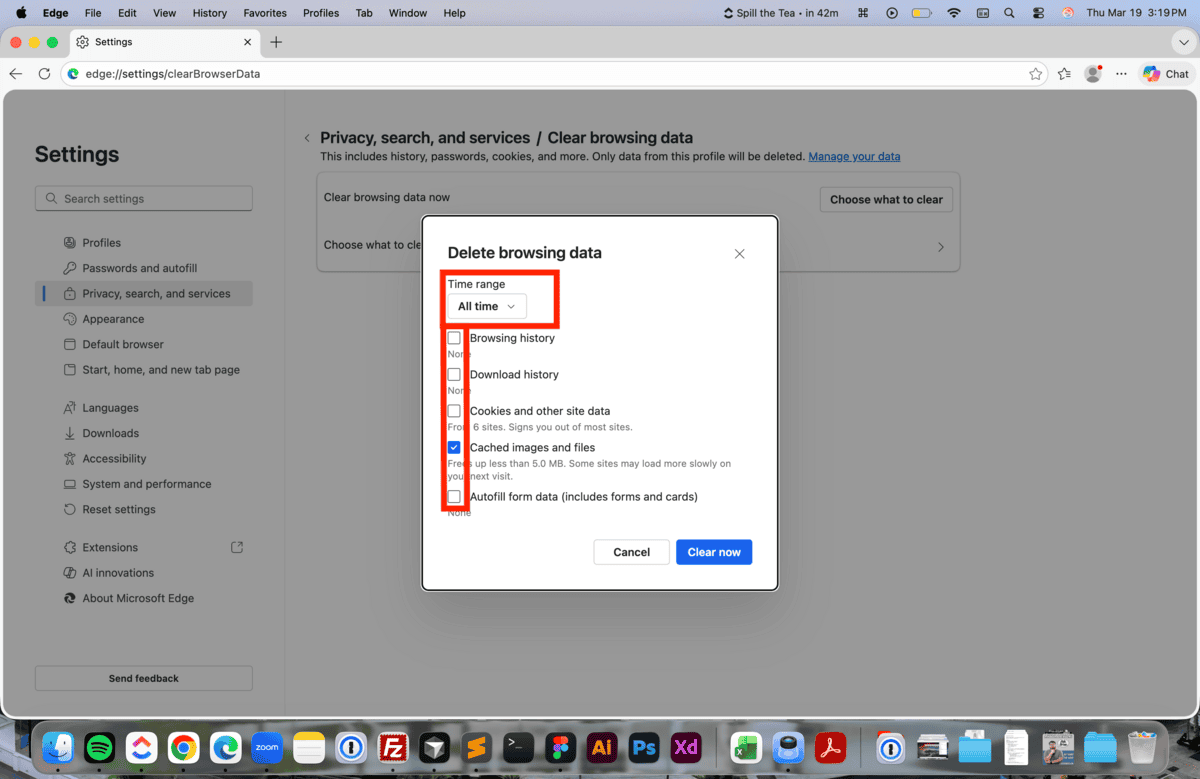
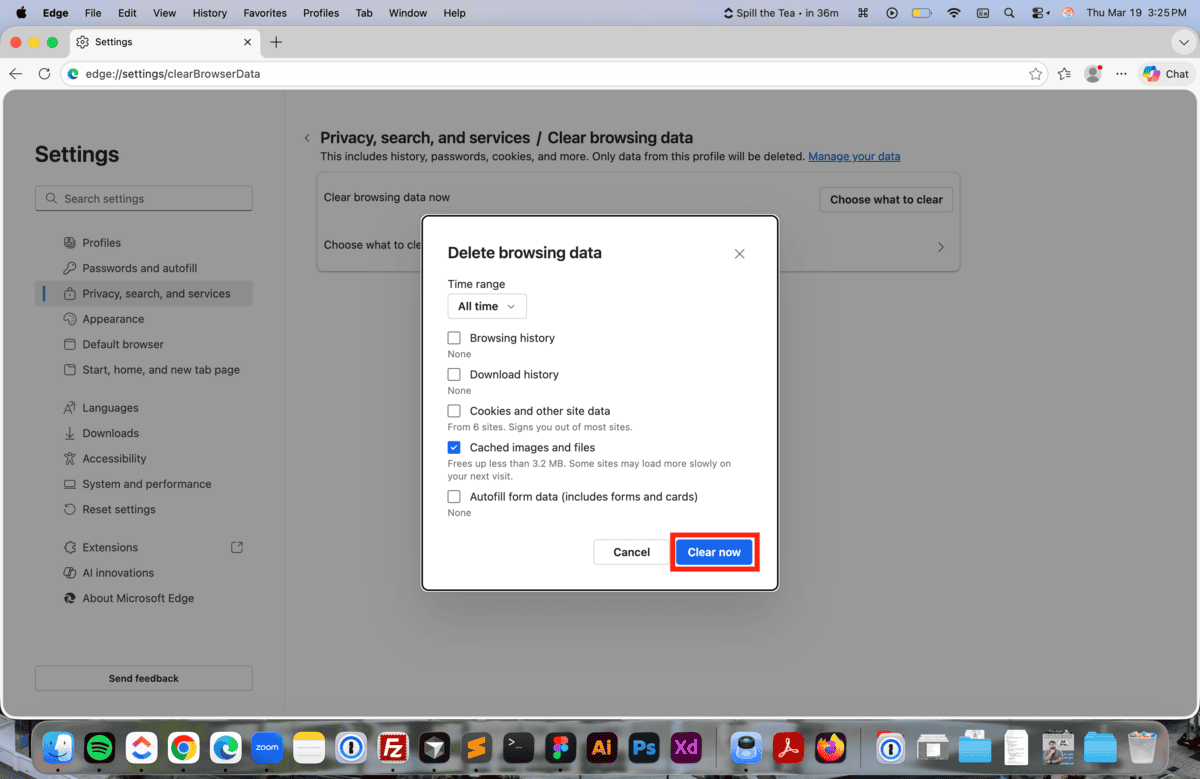
Choose “All time” in the Time range, and ensure only the “Cached images and files” option is checked. Deleting browsing history and cookies and other site data is unnecessary.
Step 3
Click “Clear now.” That’s it!
Hint: If that doesn’t work, try adding a query parameter with a random strong of characters to your link (e.g. yoursite.com/?123), which will force your browser to load an uncached version of the page.
Step 1
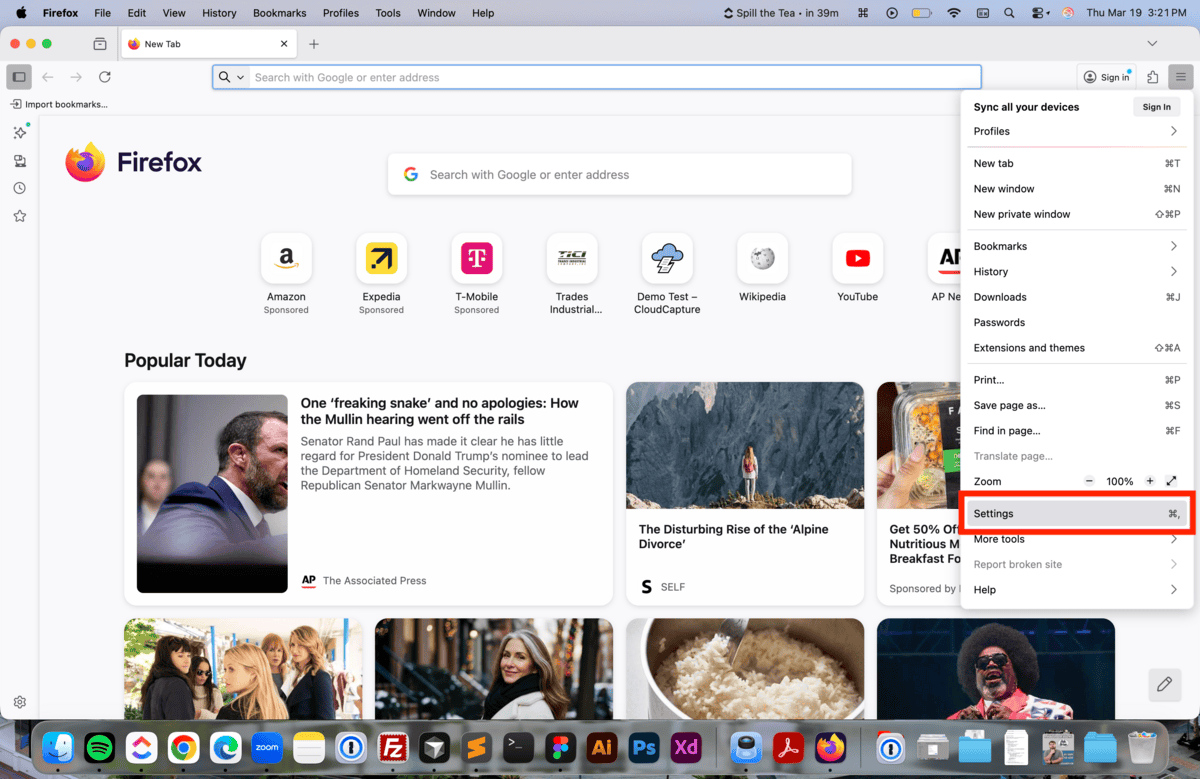
Open Firefox, click the three lines in the top-right corner, and click “Settings.”
Shortcut: Press Command + Comma (Mac)
Step 2
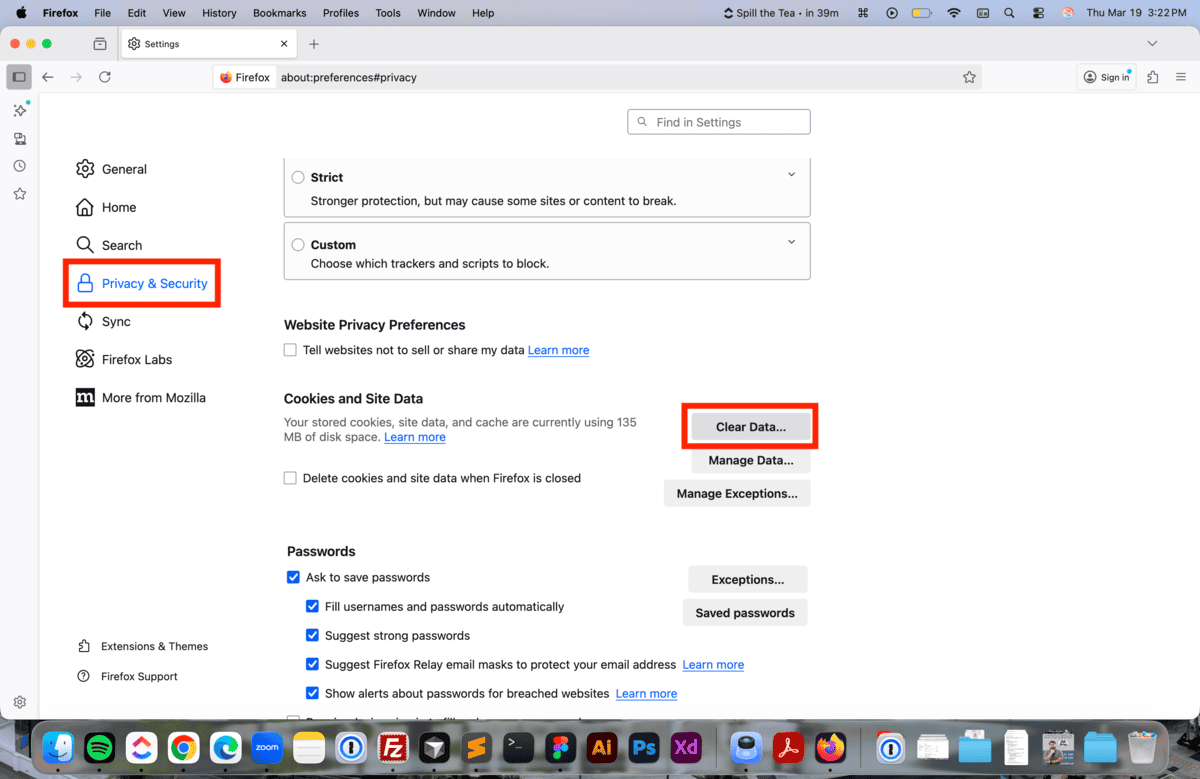
Go to the Privacy & Security tab, scroll down to the section labelled “Cookies and Site Data,” and click “Clear data.”
Step 3
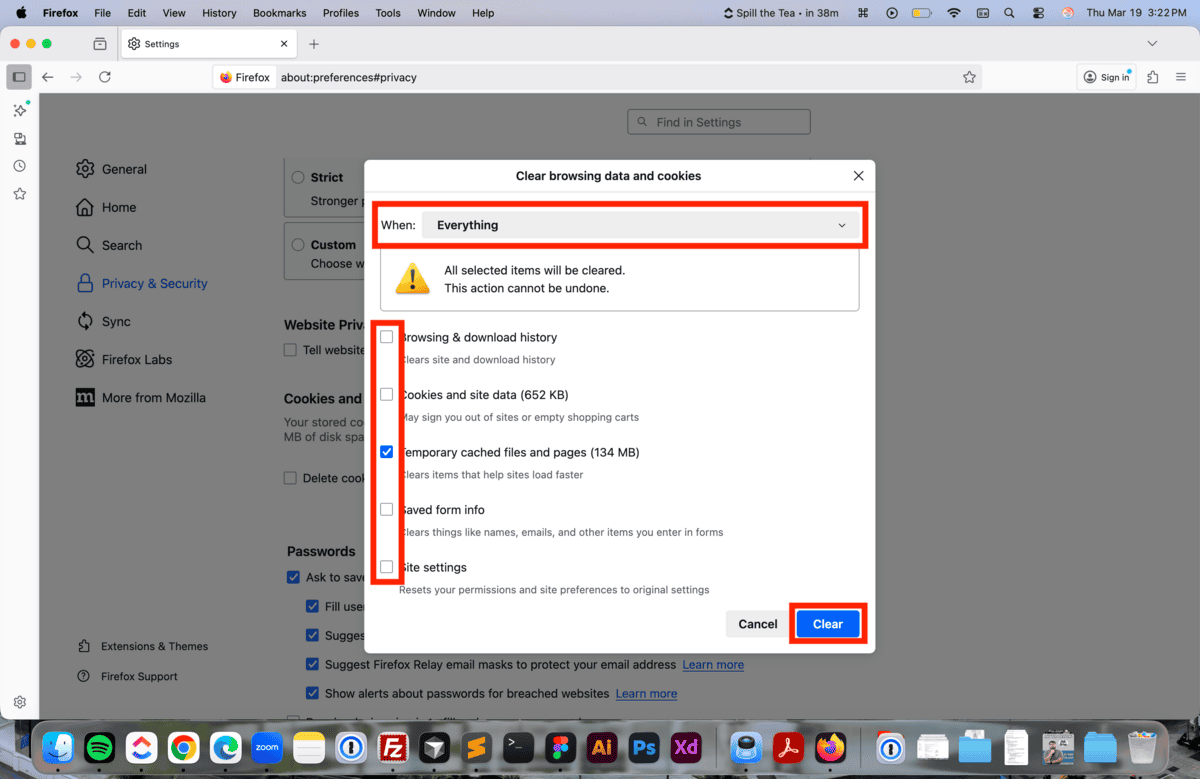
Choose “All time” in the Time range, and ensure only the “Temporary cached files and pages” option is checked. Then click “Empty Caches.” That’s it!
Hint: If that doesn’t work, try adding a query parameter with a random strong of characters to your link (e.g. yoursite.com/?123), which will force your browser to load an uncached version of the page.
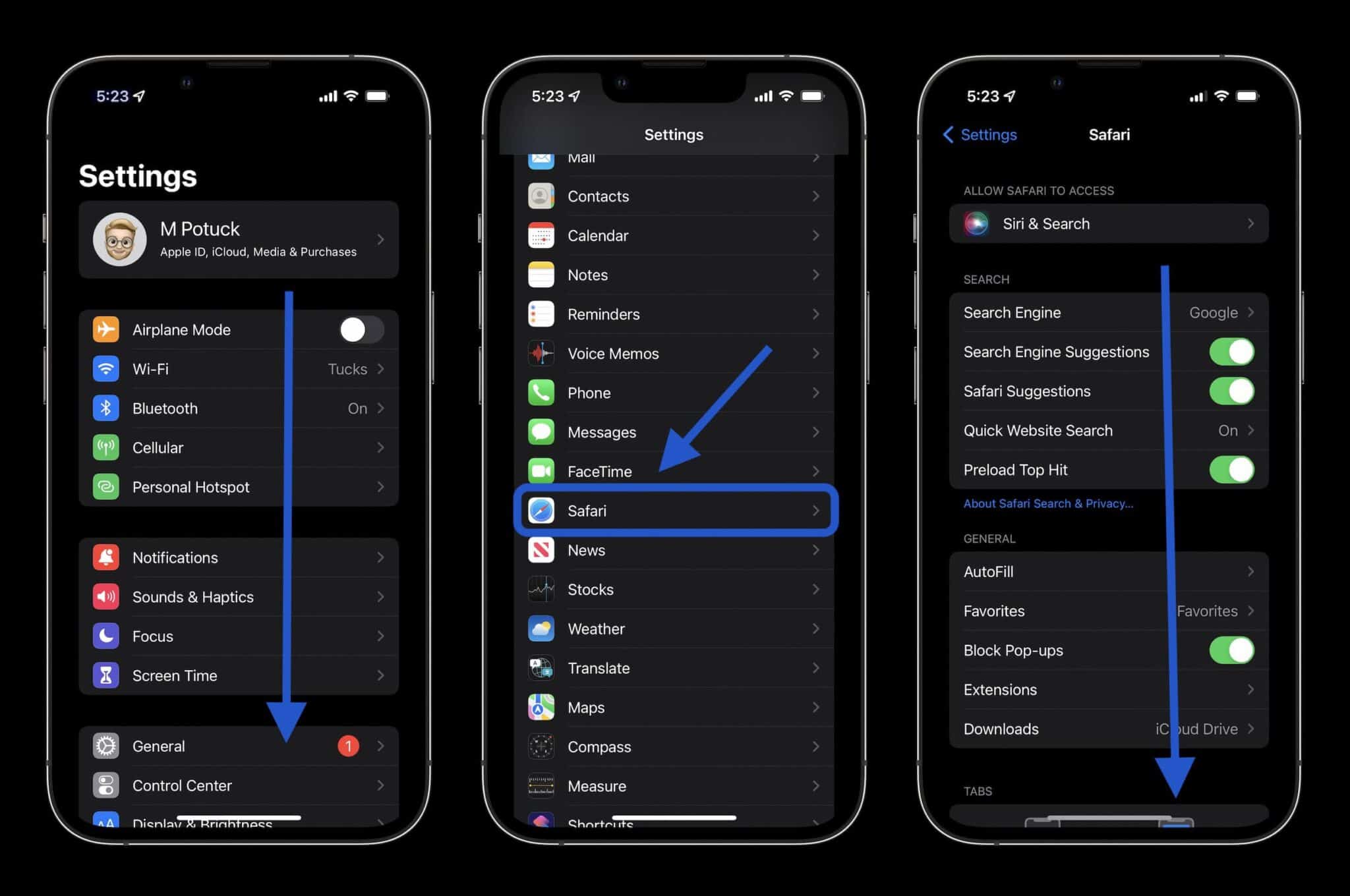
Step 1
Go to Settings, tap Apps, then select Safari.
Step 2
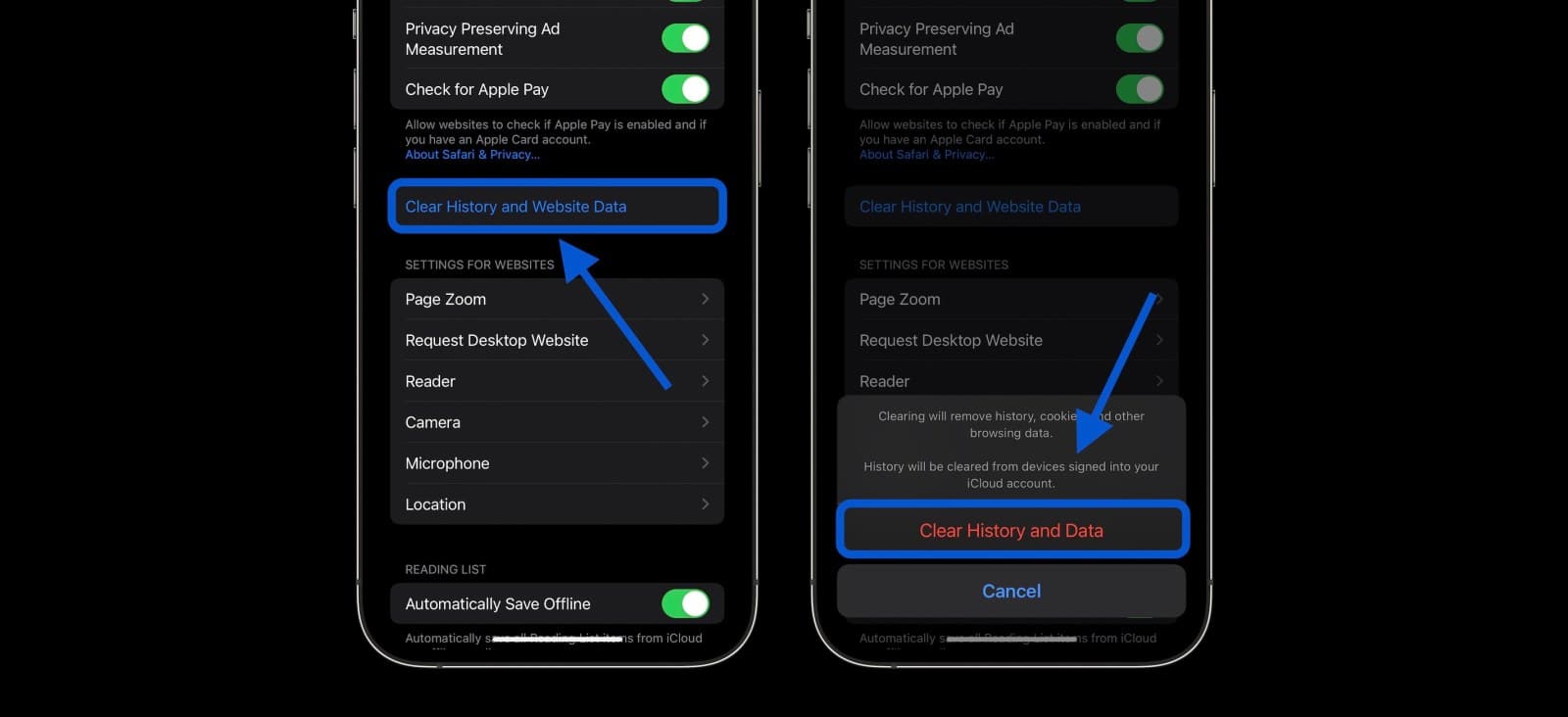
Scroll down and tap “Clear History and Website Data.” The tap “Clear History and Data” when prompted.
Note: This clears both cache and cookies, which means you will be logged out of websites where you were previously logged in.
Hint: If that doesn’t work, try adding a query parameter with a random strong of characters to your link (e.g. yoursite.com/?123), which will force your browser to load an uncached version of the page.
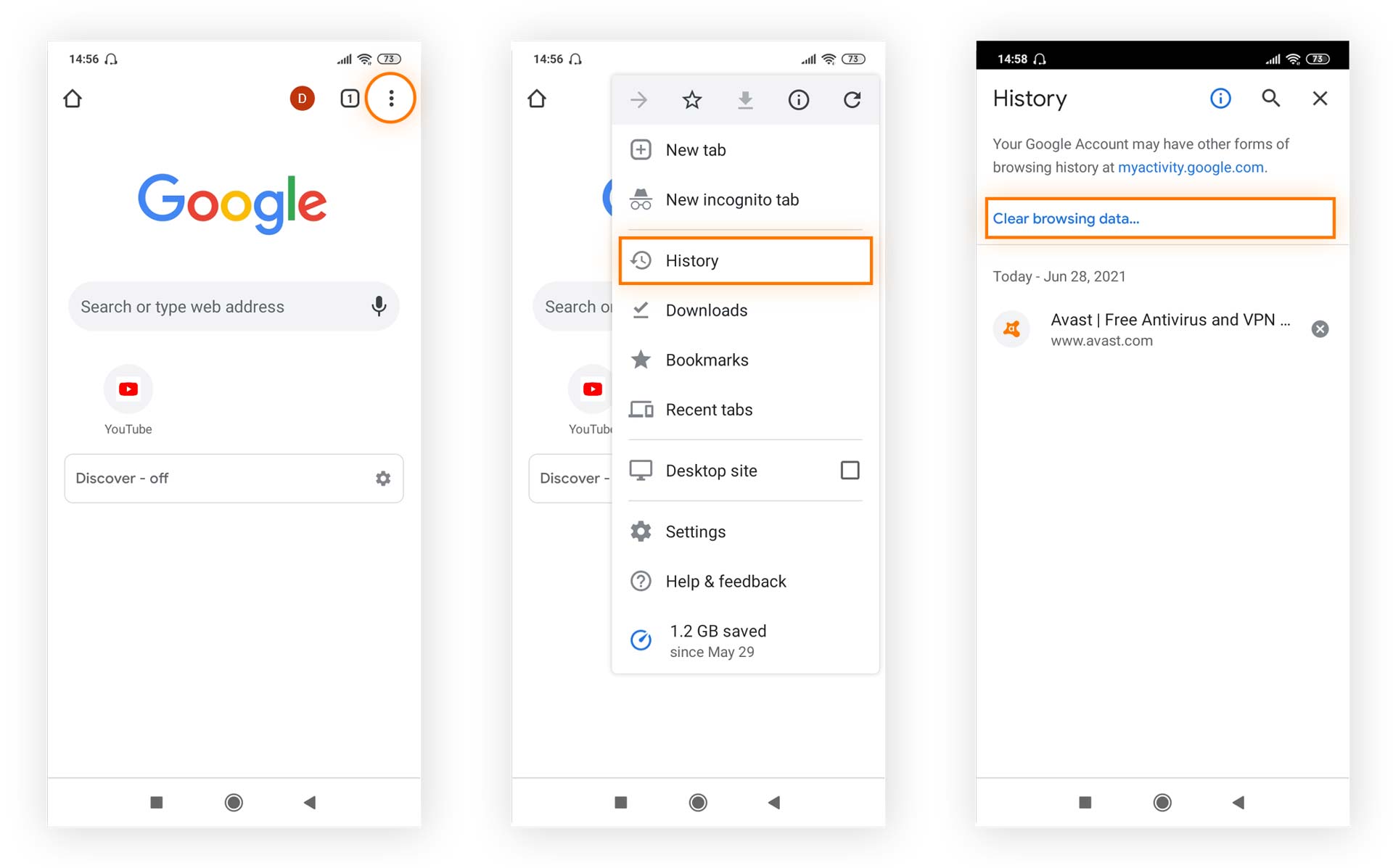
Step 1
Open Chrome. At the top-right, tap on the three vertical dots to open the Chrome options menu. Tap “History,” then tap “Clear browsing data….”
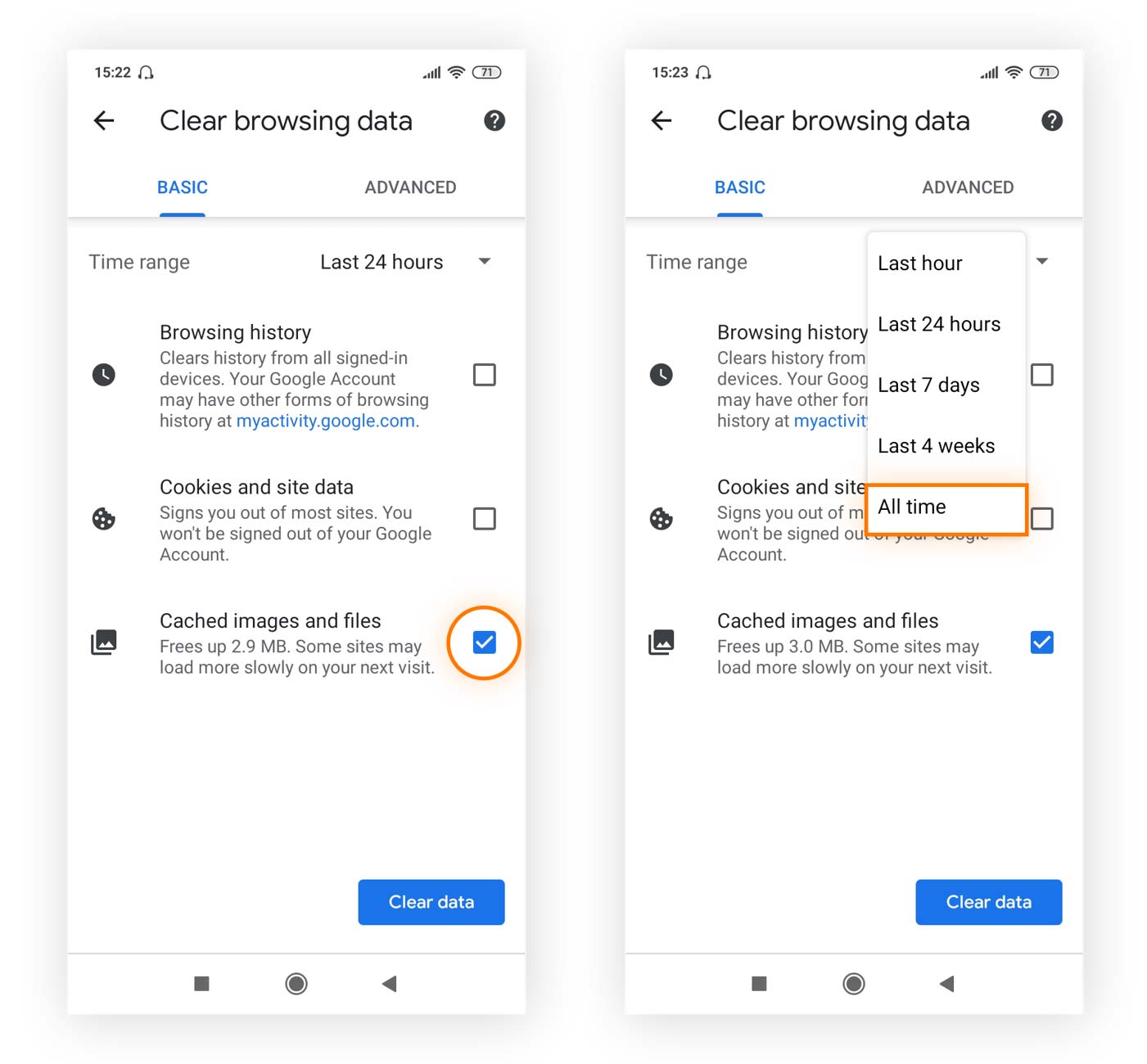
Step 2
Ensure only the “Cached images and files” is checked. Deleting browsing history and cookies and other site data is unnecessary. Next to “Time range,” choose a time range. Selecting All time will delete your entire Chrome cache. Tap “Clear Data.”
Note: Deleting cookies and other site data will sign you out of all accounts across all websites.